


How Clearing Agent Will Add Electronic Form-E In Weboc ?
Procedure To Attach Electronic Form-E In Weboc GD:-

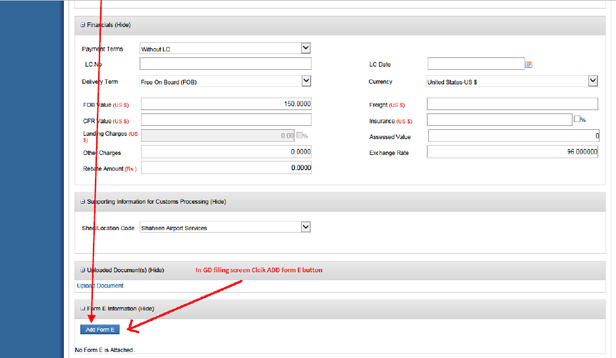
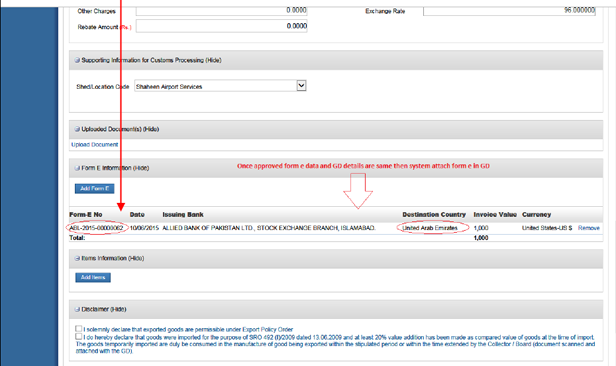
When we clicked the ADD FORM-E button so following pop-up windows is shown, then search the required form-e number provided by the exporter in the given text box, once required form-e found so it will appear on your screen now tick mark check box and then click attach button, once we clicked attach button system will validate the following particulars of the ‘Form-E’ with Goods declaration document (as shown in below screens) :
a. Country
b. Delivery Term
c. Port of Discharge
d. Consignee Name
The System will re-validate with data with approved Form E information and data which claim in GD if its mismatch with each other than system show an error when attaching form-e in GD.

If agents provided information during the GD filing and approved Form-E information not match so following error will show on screen.
Form-E: ABL-2015-00000001 Mismatched Following Information provided in GD
* Country
* Delivery Term
* Port of Discharge
* Consignee Name
—————————————————————————————————–

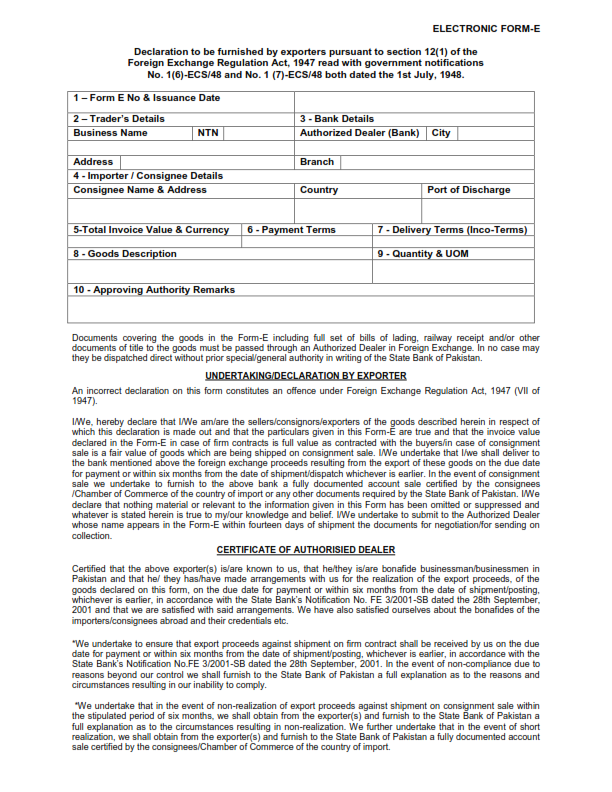
WeBoc`s Electronic Form-E Sample:-

Related Posts:-
* GD Filing Time In Weboc
* Changes In The WeBoc Software
* How to Add Bank Branches In Weboc.
* File Request For Issuance of Form E in Weboc.
* License Renewal Procedure of Customs Clearing Agent
* How to Create Online Electronic Form-E Issuance Request in WeBoc (Video Tutorial In Urdu).

